How to View & Manage Your Orders in the App
You can view your past orders, track shipments, and manage your subscriptions directly in the Gardyn app.
In this article
Manage Autoship (Subscribe & Save)
If you want to pause, skip, or cancel your Autoship deliveries, you can manage it in your Gardyn App Autoship Settings. This article walks through the steps: How to Manage Your Autoship (Subscribe & Save) in the App
Find your orders
You can access your orders in two ways:
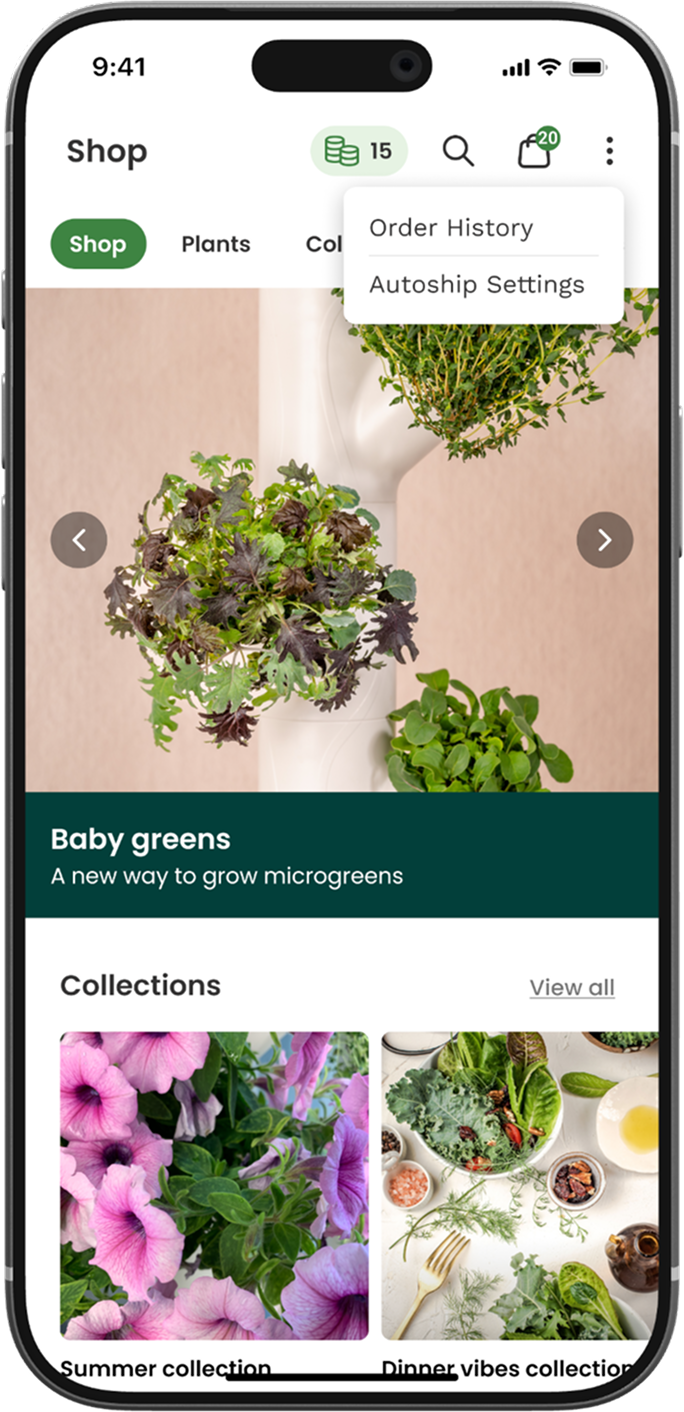
From the Shop tab
Open the Shop tab
Tap the menu (⋮) in the top right corner
Select Order History
From your Profile
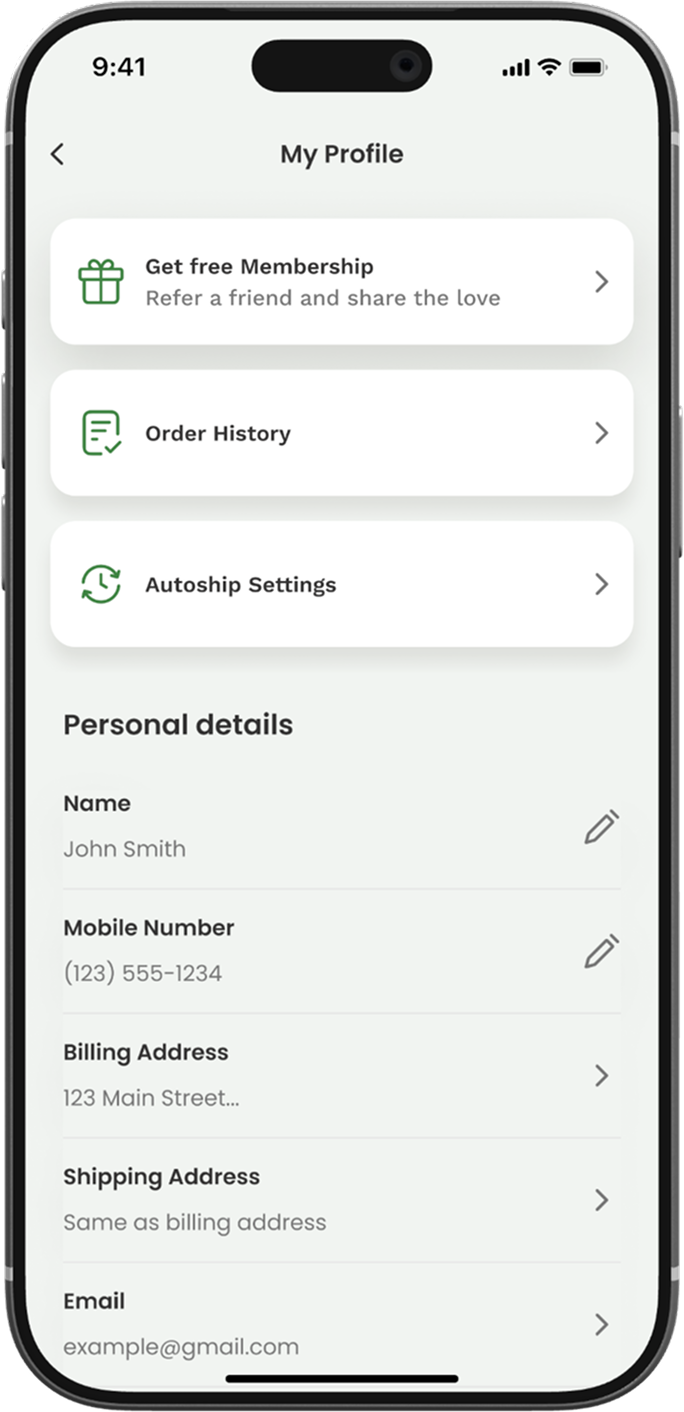
Go to My Profile
Tap the Order History banner at the top
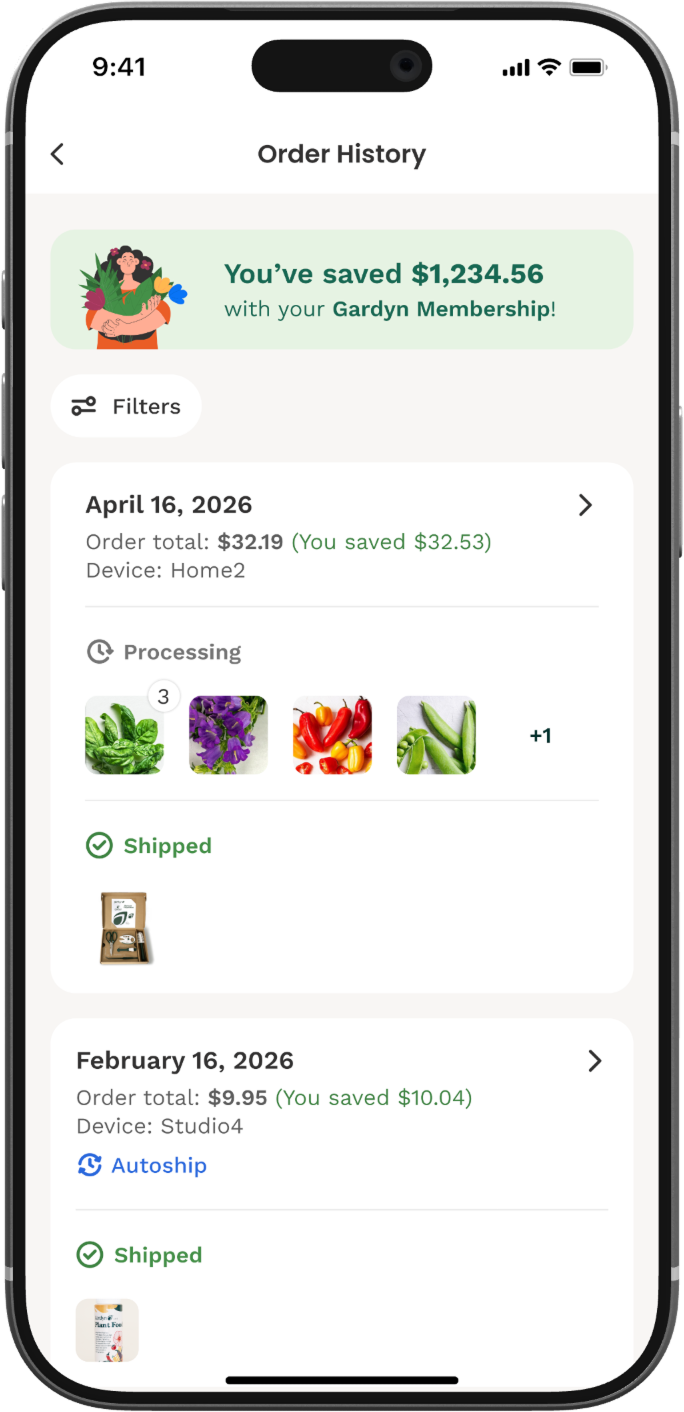
Order History includes an itemized view of each order.
Tap any order to see items, status, and tracking details.
Open Order History
Tap on an order
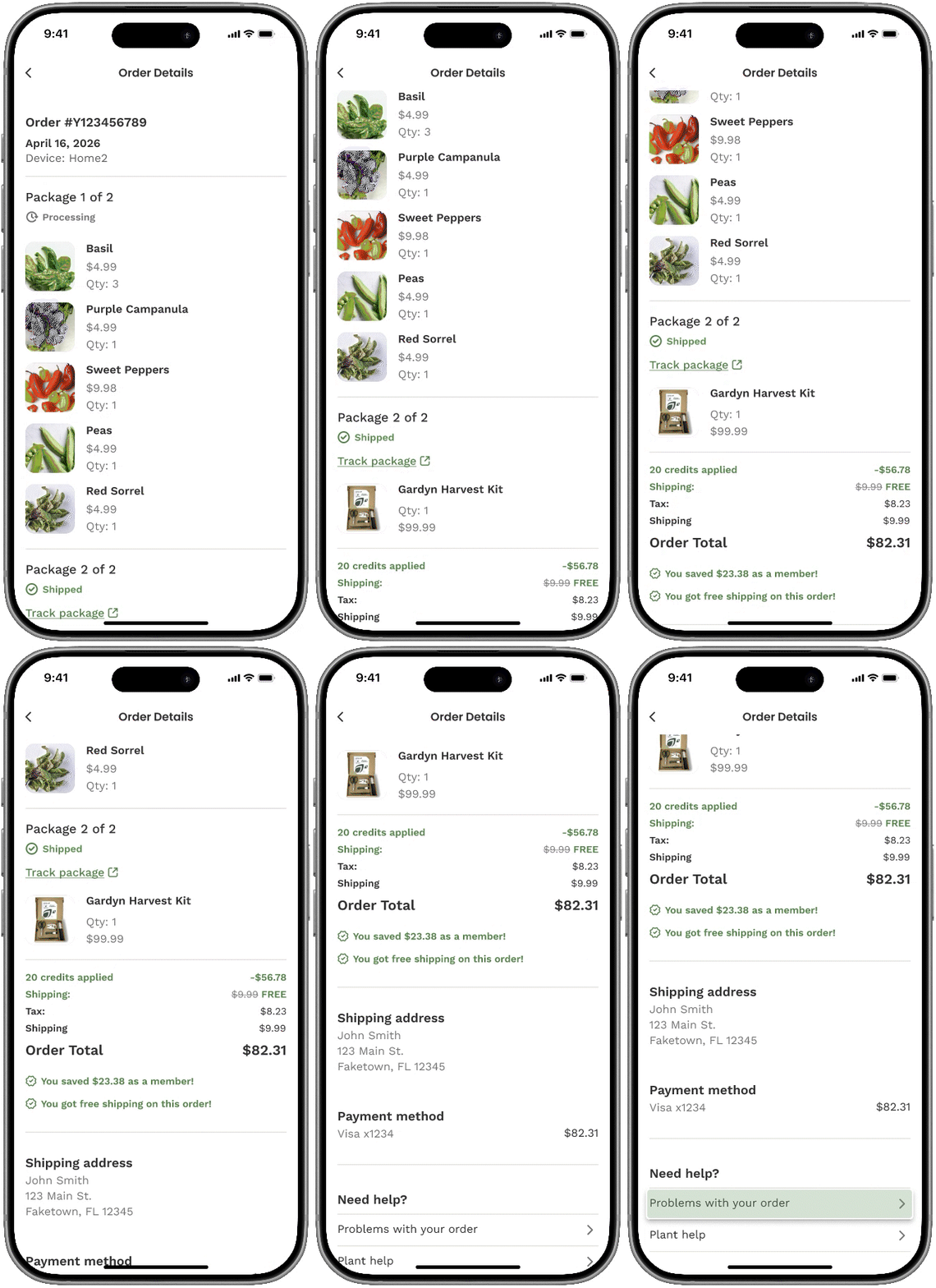
From there, you can:
View the items in your order
Check the status
Access tracking information (when available)
Open the carrier’s tracking page (USPS, FedEx, etc.)
A quick note
For the most detailed tracking updates, open your order and use the provided carrier tracking link. Delivery updates are managed directly by the shipping carrier.
Need help with an order?
If something doesn’t look right:
Open your order from Order History
Select Problems with order
This will guide you through the next steps and connect you with the right support.
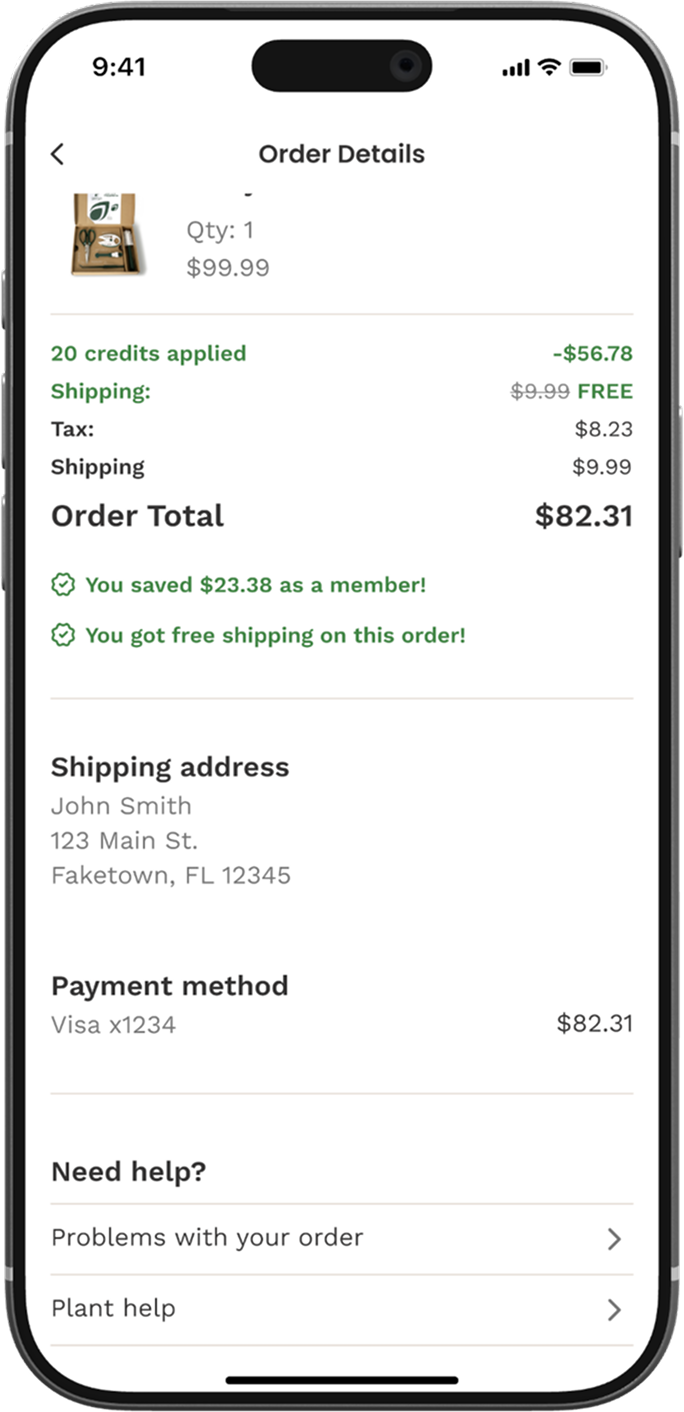
The GIF below shows how this screen appears in the app.