
How to Save/Favorite Plants in the App
Edited
Save the plants you love to your favorites so you can find them quickly and add them to your cart in just a few taps.
Viewing Your Favorite Plants
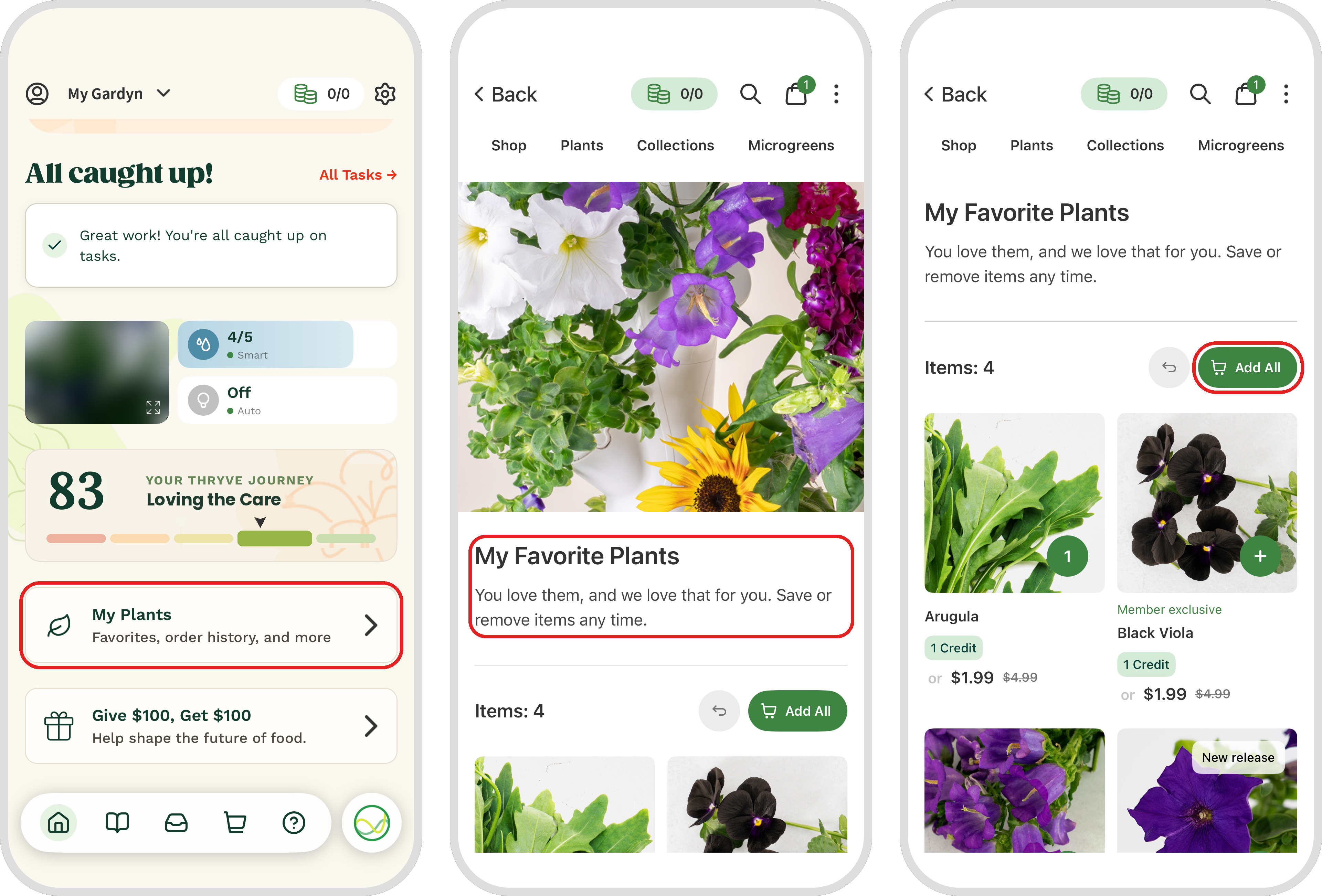
On your app’s Home screen, tap My Plants.
Your favorite plants appear at the top. Tap View All to see your full list.
To add every plant on your list to your cart at once, tap Add All.
Adding a Plant to Your Favorites
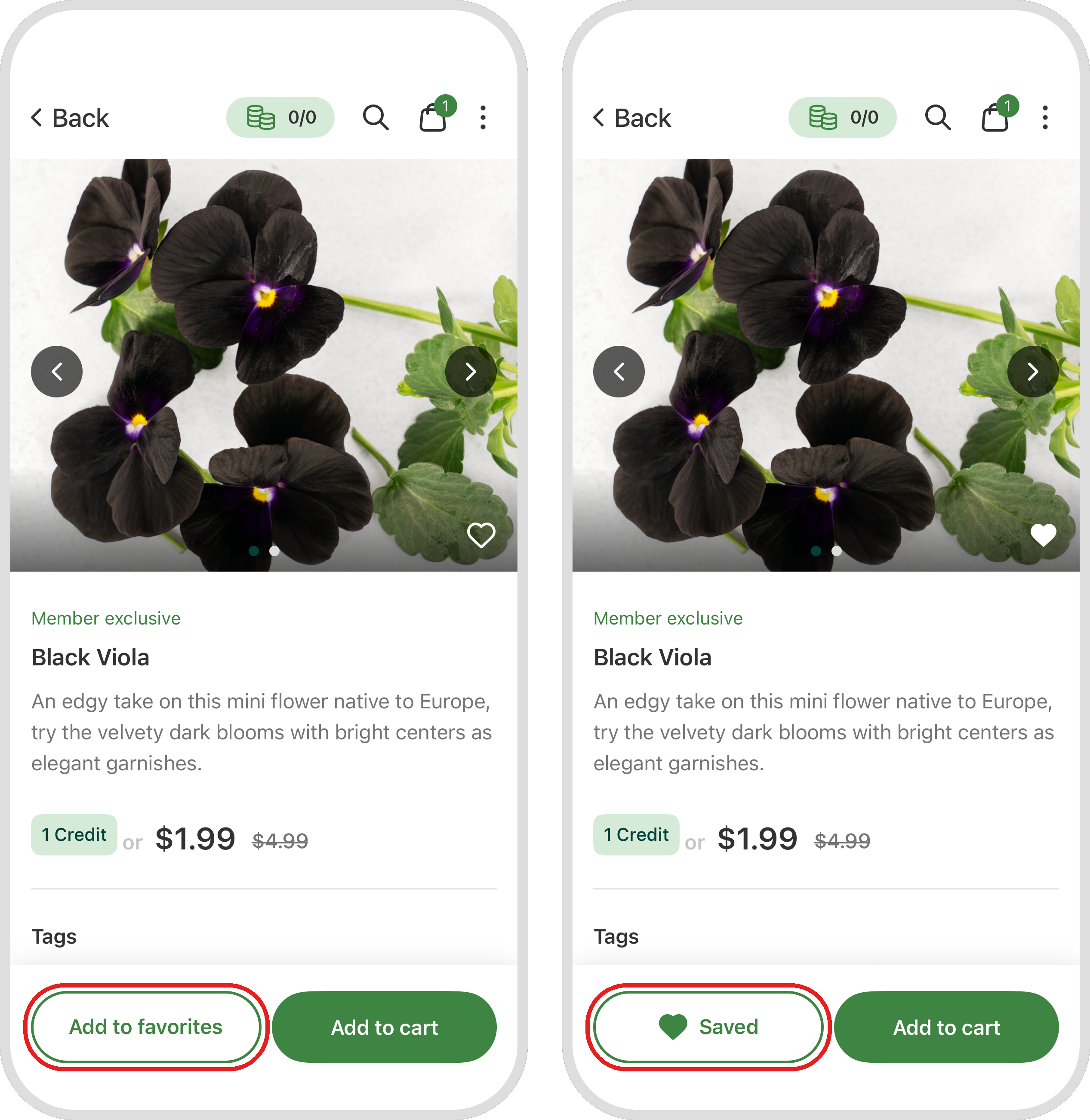
Open the plant in the Shop.
Tap Add to favorites. The button changes to Saved, and the plant appears in your favorites.
Removing a Plant From Your Favorites
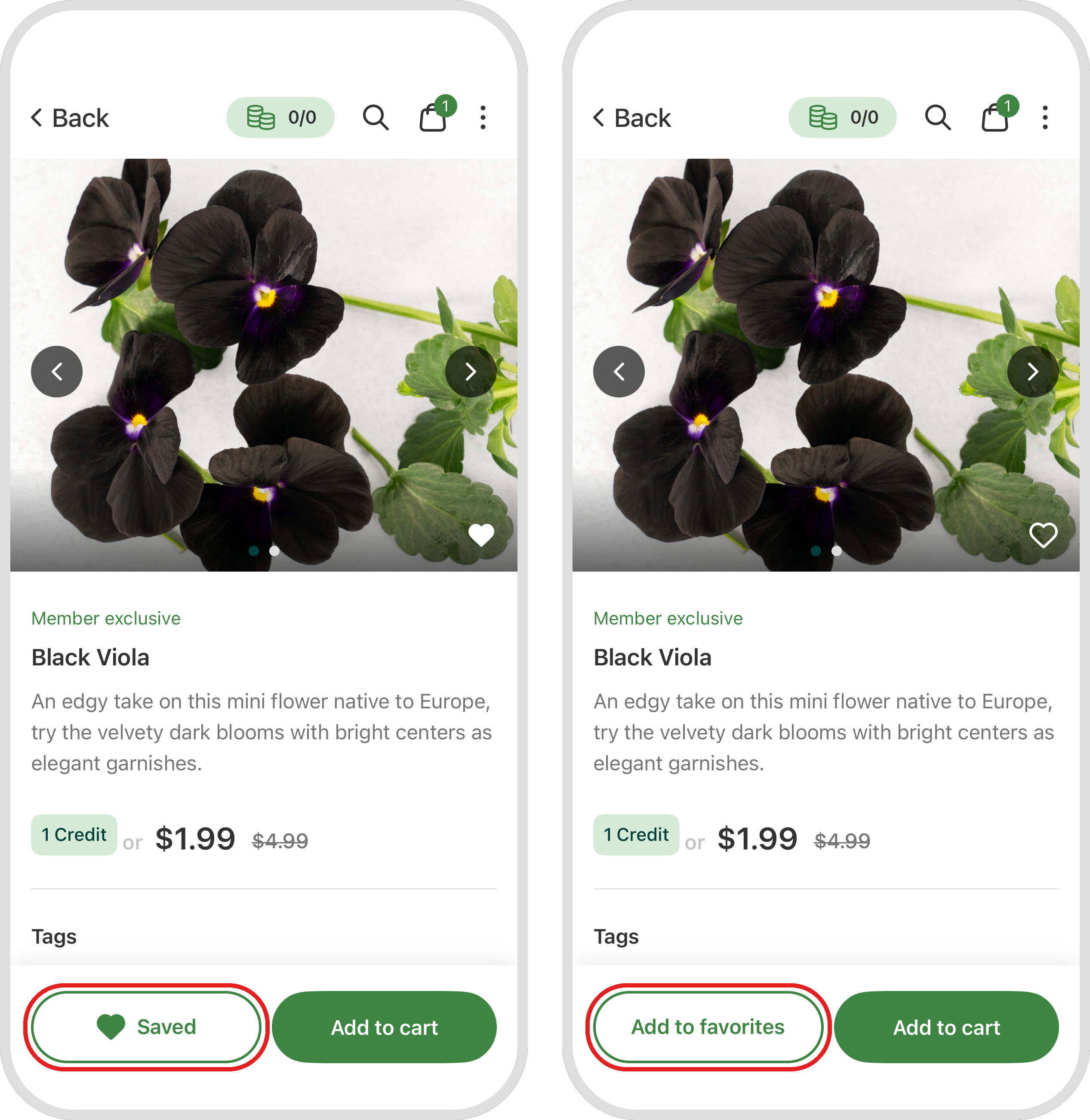
To remove a plant, open it in the Shop and tap Saved. The button changes back to Add to favorites, and the plant comes off your list.
Questions? Reach us at support@mygardyn.com, or chat with us. We’re here to help!
save
favorite
plant
app